
|
|
|
|
|
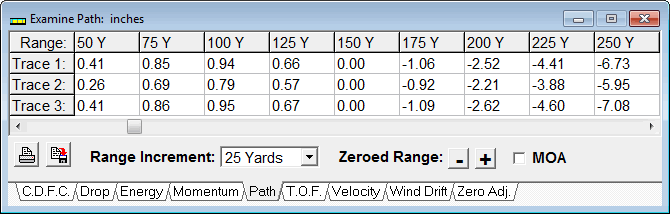
Examine Traces Click View on the main menu and then click Examine Traces to open this display. The Examine display allows you to easily compare the data from all three traces. Each category of data is selected by clicking on its corresponding tab at the bottom of the display. The increment between ranges is controlled by clicking on the Range Increments combo box and then selecting the increment.
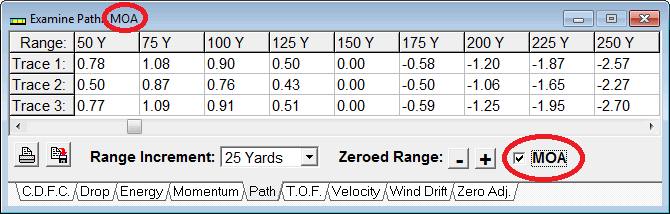
When either the Path, CDFC, or Zero Adj. tab is selected the + and - Zero buttons become active. These buttons allows you to increase or decrease the zeroed range one range increment at a time. The values for the bullet's Path, CDFC, and Zero Adj. are instantly updated to reflect the new zeroed range. This unique feature allows rapid experimentation with different zeroed ranges. As with many of the program's features, this one is a tool for exploring the possibilities and gaining insights into the subject of exterior ballistics. Once you have selected the data and range increment you want, you can get a printed copy by clicking on the Print button (left of Range Increments box). If you have the Print preview option selected, the Examine data is displayed in the Print Preview window and you can either print it or cancel. You can click on the File button (left of Range Increments box) to save the selected data to a standard ASCII file or a Microsoft Excel file. A standard file dialog box allows you to specify the name and directory for the file. You can also view CDFC, Drop, Path, or Wind Drift in MOA or other sight adjustment units by selecting the check box as shown below.
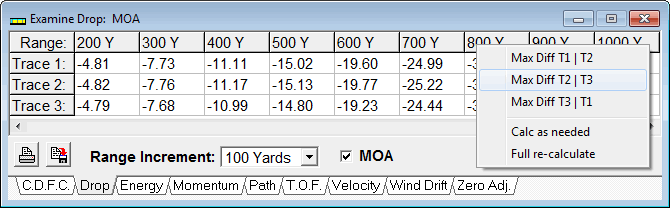
The values are instantly updated between inches (cm) and MOA (or other sight adjustment units) as you check and uncheck the box. The CDFC, Drop, Path, or Wind Drift tabs each have their own independent check box. If you select to view Path in MOA and then click on the CDFC, Drop, or Wind Drift tabs their equivalent check boxes won't necessarily be checked. However, the equivalent check box for the Path tab on the Explore, and Graph, displays will be checked and the Path column in the Report display will show MOA when these displays are selected by clicking anywhere on them. Unchecking MOA on one of those displays will uncheck it on the Examine display's Path tab when the Examine display is once again selected. In summary, CDFC, Drop, Path, and Wind Drift each have their own independent Inch/MOA check box, which are connected to the equivalent check boxes on the Examine, Explore, Graph, and Report displays. The check box and data on other displays are only updated when you click on those displays to refresh them. To compare data from one trace to another right mouse click anywhere on the data grid to open the pop-up menu shown below.
The menu shows three options that allow you to find the maximum difference in the value selected by the tab and range at which that value occurs. In the above example click the Max Diff T2 | T3 option to find the maximum difference in Drop between Trace 2 and Trace 3 from the muzzle to the distance selected by the Scale setting on the main menu. |
||
|
The Trace Camparator dialog opens as shown to the right. If you have the MOA box checked then the value is in MOA, or whatever sight adj. unit you're using. Otherwise, the value is in inches or centimeters for Drop. If the Velocity tab is selected the value will be in f/s or m/s. Whichever tab is selected determines the data compared and the units displayed. The CDFC, Drop, Path, and Wind Drift tabs have the option to display either sight adj. units or inches (centimeters). Expect to get different values for the range at which the maximum difference occurs as sight adj. units are related to the distance, while inches or centimeters are absolute values. |
 |
|
|
The scan for the maximum difference checks values at 1 yard or meter increments regardless of the Range Increment setting. The scan works with raw values, so it's possible to get a result in the information message that's different than if manually comparing the values in the data grid. That's because the values in the data grid are rounded, such as to the nearest hundredth of an inch or centimeter. Thus, the value for 1 trace could be rounded down while the value for the other trace could be rounded up resulting in an apparent deference larger than what's shown in the information message. In all cases the value and range given in the information message are more accurate. |
||
|
|