Verifying
Digitally Signed Software
All of our installations and the programs of
ours that they install are digitally signed by Dexadine, Inc.
To do this we had to prove to a Certification Authority that
we are who we say we are and then receive a digital signing
certificate from them.
So why should you care? Because it's statistically
improbable that a digitally signed program can be altered
in any way without invalidating the digital signature. Thus,
if the digital signature is OK, you're assured that the program
is exactly as it was when we signed it. If a file gets corrupted
during download, infected by a virus, or modified by someone
else the digital signature will be invalid.
|
Windows
XP and Vista
|
|
Starting in 2016 Microsoft is enforcing new
security rules.
Files downloaded from the internet that are digitally
signed after 2015 must now be signed with a higher security
certificate (SHA-2).
However, Windows XP and Vista don't support these
new requirements. At least with XP, you won't see any
warning when downloading files, but if you check the
digital signature manually it shows as invalid, but
this is only because XP doesn't support SHA-2. Most
likely the file is OK, but proceed at your own risk.
Vista has the same issue, but may also display a warning
message when downloading files signed with an SHA-2
certificate.
|
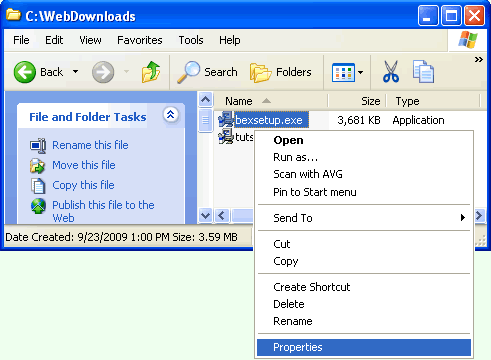
To verify one of our files, open either Windows
Explorer or My Computer and browse to the folder where you
downloaded the file to and then right mouse click on the file
name. In the menu that pops up select Properties as shown
below.
The Properties dialog opens and displays
a number of tabs near the top. Select the Digital Signatures
tab and you'll see Dexadine, Inc. in the Signature list. Click
on our name and then click the Details button to open
the Digital Signature Details dialog as shown below.
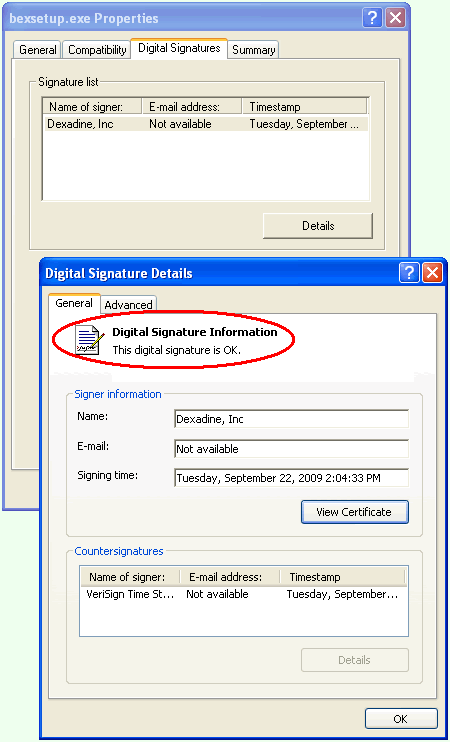
If the file is exactly as it was when it was
signed by us it will say "This digital signature is OK"
and our name will be listed in the Signer informaton box.
At that point you know you have a good copy of one of our
files.
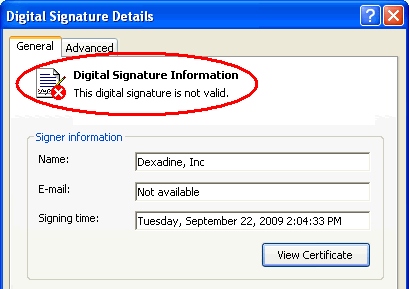
As an experiment, we randomly changed just a
single bit in the file and then checked the digital signature
and as you can see below, the signature is not valid.
If you want more informaton about digital signatures,
Microsoft has an artical titled Introduction
to Code Signing that goes into much more detail.
