Troubleshooting
(can't open vault file)
You type in your user name and password as
you've done many times before and to your surprise the following
message pops up.
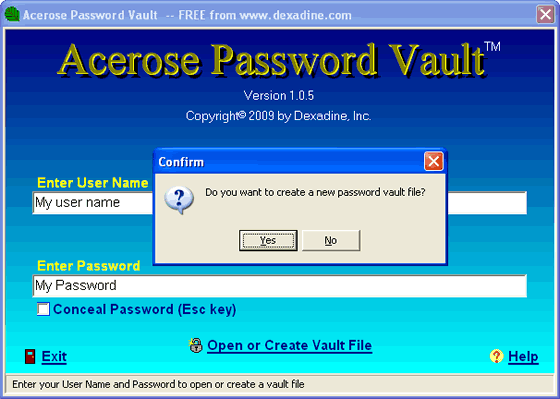
Create new vault file message
The most likely cause is that you made a mistake
typing either your user name or your password. Click No
and then OK on the next message and carefully enter
your user name and password again making sure to use the same
exact case (capital letters) and spacing you used when you
created your vault file. Tip: Uncheck the Conceal Password
box so that you can see your password to make sure it's correct.
If you still can't open your vault file click
No as before and then take a good look at the Error
message as it's telling you what file the Acerose program
is looking for.
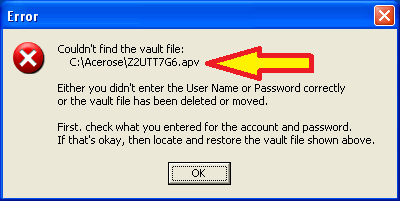
Error Message shows vault file name and folder
The Acerose program only looks for vault files
in the folder the program file "acerose.exe" is
located in and launched from. The name of the vault file is
derived from the user name and the password. The file extension
of active vault files is always "apv".
The key to fixing most problems is understanding
the above paragraph, so you may want to go back and read it
again.
If you have moved your vault file to some other
folder, the Acerose program can't find it. If you have moved
the program file "acerose.exe" to some other folder,
the Acerose program can't find your vault file. If you are
launching a copy of the program file "acerose.exe"
in a different folder, it can't find your vault file. If you
have renamed your vault file the Acerose program can't find
it.
If you are sure you are using the correct user
name and password launch Windows Explorer and open the
folder given in the error message and make sure both the
program file and the vault file are in that folder.
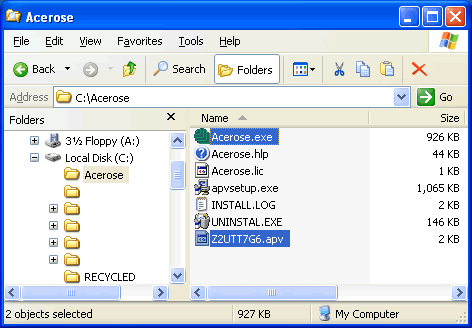
If both files are in the expected folder and
you are getting the create new vault file message then you
are not entering your user name and/or password correctly.
There is no backdoor into Acerose. If you've lost or forgotten
your user name and/or password there's nothing that can be
done to open your vault file. The best hope is for you to
try different combinations of what you can remember of your
user name and password. Often it's as simple as you forgetting
that you used upper or lower case for one or more letters
in your original user name or password. Write down various
combinations of your user name and password and systematically
try them.
If you have made only one vault file than there
should be only one file with the "apv" file extension
in the folder regardless of how many records it contains.
An empty vault file has a file size of 1 KB and each record
in a vault file adds 1 KB of space, so you can tell if a vault
file contains the number of expected records by it's file
size. This is useful to know if you have been trying to open
your vault file and have ended up creating a new one that
doesn't contain any records as it will have a file size of
1 KB.
If the vault file is not shown in the expected
folder, or it's an empty one you inadvertently created, then
search for the original vault file in other folders. This
can happen if you are launching a second copy of the Acerose
program rather then the one you expected. Maybe you installed
Acerose more than once and to different folders or you made
a backup copy of the entire Acerose folder and somehow you
are launching the wrong copy. Whatever copy of the program
you launched will show it's own folder in the Error message
shown above. If you find the vault file then copy it to
the same folder the Acerose program file is in, but be careful
you don't make a mistake and copy an empty or old vault file
over the one containing your current records. Once you have
the vault file in the proper folder launch the copy of Acerose
in that same folder by double clicking on the "acerose.exe"
file, and then enter your user name and password normally.
Note that you can't open vault files by double
clicking the vault file's name. You have to open the Acerose
program that's in the same folder as the vault file and then
enter your user name and password to open a vault file. There's
no viable means of figuring out what user name and/or password
was used to create a particular vault file.
In some cases when you enter your user name
and password the following message pops up.
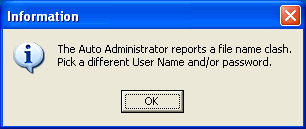
If you are not tying to create a new vault file
then this message means the Acerose program found the vault
file but can't open it. This means the file has been corrupted
or overwritten. Hopefully you made a backup.
In other cases you may see a message similar
to the following when opening a vault file.
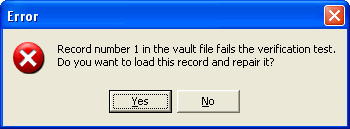
In this case one or more records within the
vault file have been corrupted. If you click Yes the
program will attempt to repair the record. Both the user name
and password in each record are saved redundantly and the
program will use that redundant data to fix the user name
and password for that record, if possible. However, other
fields within the record cannot be repaired.
If nothing happens at all after you type your
user name and password and press the Enter key or click
Open or Create Vault File, then Acerose is finding
the expected file, but it's so corrupt that the program doesn't
recognize it as a vault file. Hopefully you made a backup.
Another possible cause of not being able to
open a vault file is a problem with the hard drive. Hard drives
can fail catastrophically or in a way that initially only
effects a few files.
To avoid loosing data from all these causes
you should be making backup copies. See recommendations and
how to information for making backups and restoring them in
the FAQ section below.
When you first create a vault file you see the
following message.
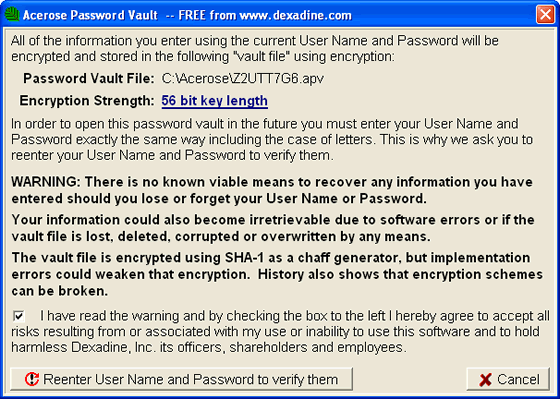
Over the years, to the best of our knowledge
everyone who has followed the instructions and recommendations
on this page has been able to recover their passwords. Just
as a reminder, however, before you created your vault file
you had to click the checkbox indicating you have read the
warnings and that you accept all risks in using or not being
able to use the Acerose Password Vault program.
Frequently
Asked Questions
Q: What
do you recommend for backing up my passwords?
A: By default
Acerose is installed to the "C:\Acerose" folder.
Just copy the entire install folder to an external drive,
such as a USB flash drive or memory stick. It's only about
1.2 MB in size, which is nothing nowadays. Besides being able
to copy back to hard drive, once the Acerose folder is on
the flash drive you can actually open your vault file on the
flash drive by launching the program "acerose.exe"
on the flash drive. Acerose always looks for the vault file
in the folder the program was launched (started) from. If
it can't find it you'll be asked if you are starting an new
vault file. Vault files have the extension ".apv",
which stands for Acerose Password Vault.
It's recommended that you make multiple backups
and have some in a secondary location such as on a CD that's
kept in a bank safe deposit box. It all depends on how valuable
your passwords are to you. Remember, the vault files (*.apv)
are encrypted, so the risk of someone hacking the vault file
is far less than the risk of losing all copies of the vault
file due to catastrophic hardware failure or a building fire.
It's also recommended that you turn on auto
backup as it always maintains a second copy of your latest
vault file in a separate location. With the vault file open,
click Options on the main menu and then click Auto
backup options...
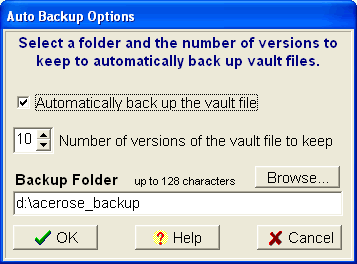
Check the box labeled "Automatically back
up the vault file", select the number of versions you
want to keep and finally select the location the backups will
be saved in. If you have more than one physical hard drive
in your computer, then select a hard drive other than the
one Acerose is installed on. This ensures that a copy of your
vault file will survive if either hard drive crashes. You
can select a network location, but you risk someone else deleting
those files even though they can't open them.
Backup vault files made by the auto backup option
have the same name as your vault file, but have a number as
the extension rather than ".apv" as shown below.
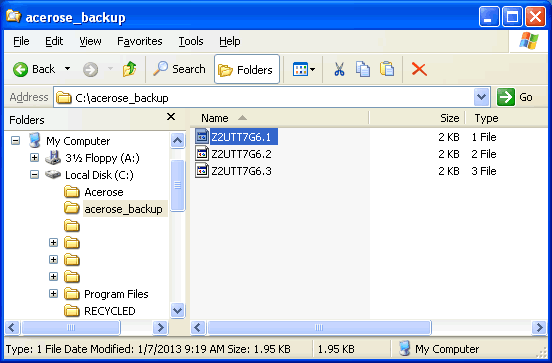
The backup with the extension ".1"
is the same version as your current vault file. The backup
with the extension ".2" is the version prior to
the last change made to your vault file, and so on. These
backups can be used from within Acerose by clicking File
on the main menu and then clicking Records recovery...
If you can't even get that far you can copy the backup file
with the extension of ".1" such as "Z2UTT7G6.1"
to the program's folder (C:\Acerose by default) and change
it's extension to ".apv" such as "Z2UTT7G6.apv".
Then launch Acerose and enter your user name and password
normally to open the vault file.
If your passwords are important to others than
make sure you write down your vault user name and password
and save that information in a secure location such as a bank
safe deposit box. There is no backdoor into Acerose vault
files and it's no fun explaining that to someone who's
spouse died unexpectedly and left them desperate for help
because they have no means of accessing their on-line accounts
and maybe don't even know where they are or that they even
exist.
Q: Does
Acerose work with Windows® Vista, Windows® 7, and Windows®
8?
A: No.
Microsoft dropped support for the help system Acerose and
many other programs use. Even newer Microsoft help systems
don't work if the help files are installed on a network drive.
A user can download a fix from Microsoft, but they warn that
doing so opens a security hole. Yes, we could add an HTML
based help system as we have done with other software, but
that minimizes the portability of Acerose. Besides, users
can now select from among many free password managers that
are now on the market, which was not the case back in 2003
when we wrote Acerose to fill that need.
Q: How
many passwords can I keep in a single vault file?
A: There
is no specified limit. The more passwords a vault file contains
the longer it takes to open. As an example, a vault file containing
100 passwords opens in 3 seconds on a machine with a 1 GHz
processor.
Q: Can
I use spaces in the User Name and Password when making a new
vault file?
A: Yes,
but you must use the same exact number of spaces to open the
vault file again. For the password, we recommend using a phrase
or make up a random word, but one which you can remember.
Q: Can
I use the same password for more than one vault file?
A: Yes,
if the user name is different in any way, then it's a different
vault file. You can also use the same user name with different
passwords. The auto manager takes care of the details.
Q: Can
I have more than one vault file open at a time?
A: Yes,
you can open as many vault files as your system has resources
for. If you have more than one vault file open and in the
tray, you can tell which user name is for a given icon by
pausing the mouse over the icon.
Q: What's
the best way to organize my passwords in a vault file.
A: When
a vault file is open, it's sorted by the Description field,
so the best way to organize a vault file is to use key words
in the Description field to group like items together. For
example, start the description of all your e-mail passwords
with the word "Mail", and all your banking or retirement
accounts with a word like "Financial."
Q: How
do I know the name and location of my vault file?
A:
When you first create a vault file you'll be shown it's name
and location. The location is always the same folder where
the "acerose.exe" program file is located. Once
a vault file is open you can see its name and location by
selecting File from the
main menu and then selecting Vault
file information.
Q: Can
I rename vault files?
A: No. The
auto manager calculates the file name based on the user name
and password using the versatile SHA-1. The auto manager has
been tested to over 120 million random combinations of user
names and passwords without finding a file name clash. In
the rare possibility that there is a clash, you'll be given
a message to select a different user name or password. With
SHA-1, there is no means of working backwards from file names
to discover user names or passwords.
Q: What's
the advantage of closing or minimizing to the tray?
A: Typically,
we select to view just the Description and Note fields, so
that if a guest is watching they don't see our passwords or
other detailed information. For enhanced security we select
to both close and minimize to the tray and require a password
to restore. This lets us quickly protect our passwords by
clicking the close or minimize icons on the upper right of
the window. The tray restore password can be something short,
as the only risk is that someone may try to guess it while
we are temporally away from the computer. The short password
makes it easy to restore the vault file when we need a password.
Common
Problems
P: Unable
to export password information.
A: This
is usually caused by the output file being set to read-only.
Either export to a different file or use Windows Explorer
to set the file's properties to allow writing to the file
(uncheck the read only box). Also, if you have just added
new records, exit Acerose and then reopen the vault file before
trying to export.
P: Unable
to launch web pages.
A: You must
have a default browser set up to launch web pages from within
Acerose. The best way to test this is to open Windows®
Explorer or My Computer, locate some *.htm or *.html
file (or make one) and double click on it. If you have a default
browser, the file will open in your default browser.
To select Windows® Internet Explorer (IE)
as the default browser, open the Tools menu and click
on Internet Options... Then click the Programs tab
and check the box near the bottom of the dialog that says
something about Internet Explorer should check to see whether
it is the default browser and then click OK. Finally
exit IE and start it again.
If the default browser test still doesn't work,
then you likely have installed some other browser and it's
keeping IE from garbing the default status, yet it's not selected
as the default browser either. See if you can get it set up
to either be the default browser or allow IE to be the default
browser.
Another possibility is that you may have installed
some third party browser that you didn't like and then uninstalled
it. Sometimes uninstalls leave orphaned settings in the Registry
that prevent IE from being the default browser. In that case
you may need to manually remove those settings, the details
of which may depend on what version of windows you are running
and what third party browser you tried. As a last resort,
you may be able to reinstall that third party browser and
use it as the default browser. You may even be able to select
IE as the default browser once the third party browser is
installed.
P: Unable to
open another vault file from within an open password vault.
A: Make
sure the User Name and Password fields are correct. Enter
the full path to the Acerose.exe file in the URL field such
as "c:\acerose\acerose.exe". The path must not
contain any spaces (spaces are not allowed in URLs). The
vault file you want to open must be in the same location as
acerose.exe. Select Script #3 in the Launch Using box. Give
it a try.
If you still can't open the vault, click Options
on the main menu and select Launch setup options... In the
Launch Setup Options dialog, select Script #3 in the Enter
or Edit Launch Script box. The script will display in the
Launch Script box. That script should be as follows:
Background
Information
Just like you, we have a number of important
assets, both on-line and off, that are password protected.
For the security of those assets we wanted to use strong passwords
and a different password for each asset. The solution is to
use a password management program, but which one? In researching
this, we found that the market is full of such programs, but
to our surprise, we found that many are fundamentally flawed
in one of two ways. Either they use a storage
protocol known to be subject to corruption or they incorporate
a password generator for which serious
attacks are known to exist.
Being software developers, we set out to create
a password management program that would avoid both these
fundamental flaws. The rock solid reliable storage of password
information required a number of features including a top
notch streaming cipher. This was solved by using the SHA-1
(Secure Hash Algorithm 1), which is at the heart of all federally
approved digital signature protocols. In it's role as a streaming
cipher, SHA-1 generates chaff (pseudo-random characters),
which is mixed with the plain text to produce the cipher text.
That's where the name Acerose comes from. One of the definitions
of acerose is "having the nature of chaff; chaffy."
It's a natural fit for password management programs
to include a password generator, but many such generators
produce only the appearance of security. We wanted a true
cryptographic quality password generator for our program,
and once again the SHA-1 was the solution.
With a bit of checking we found that typical
users have less than 50 password protected assets. With this
relative small number of items a hierarchical organization
is unnecessary. The grouping of like items is easily accomplished
simply by starting the description with key words, such as
Financial, News group, Boards, Mail, etc. Of course, you can
also sort on the date the record was created or edited, or
by URL, User name, or Note. This makes finding the item you
want easy and quick.